Multi-Factor Authentication (MFA)
Why Multi-Factor Authentication (MFA)?
- Additional Layer of Security
- Requires an Additional Code From an Email or Authenticator Application to Validate Identity
- Helps Prevent Your Login From Unauthorized Use
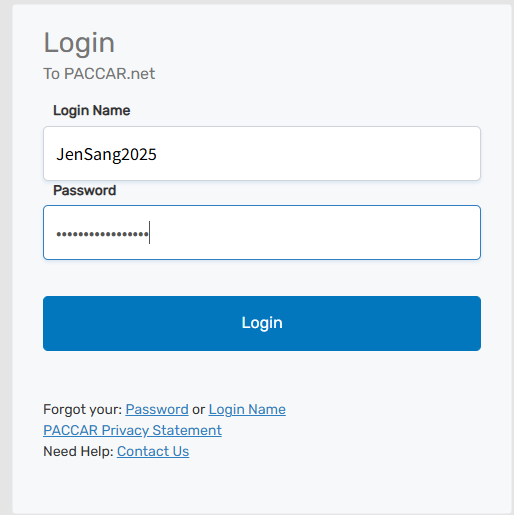
First-Time MFA Registration
1.Navigate to www.PACCARFINANCIAL.com and Enter Credentials
2.Click Login at top right of screen
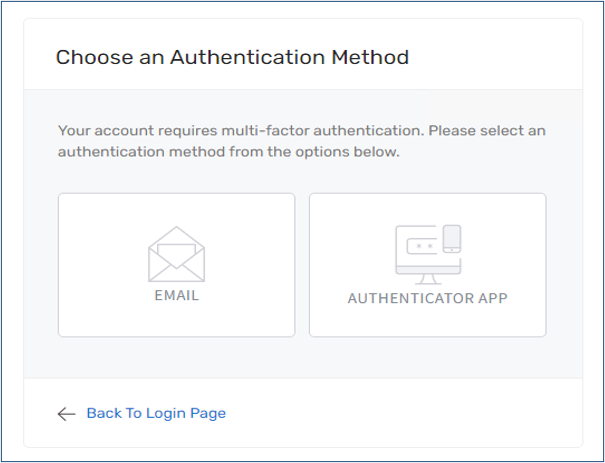
First-Time MFA Registration – Email
3.Select Email or Authenticator App for Code Delivery Method
- For Email Continue Below
- For Authenticator App, Go To First-Time MFA Registration – Authenticator App Below.
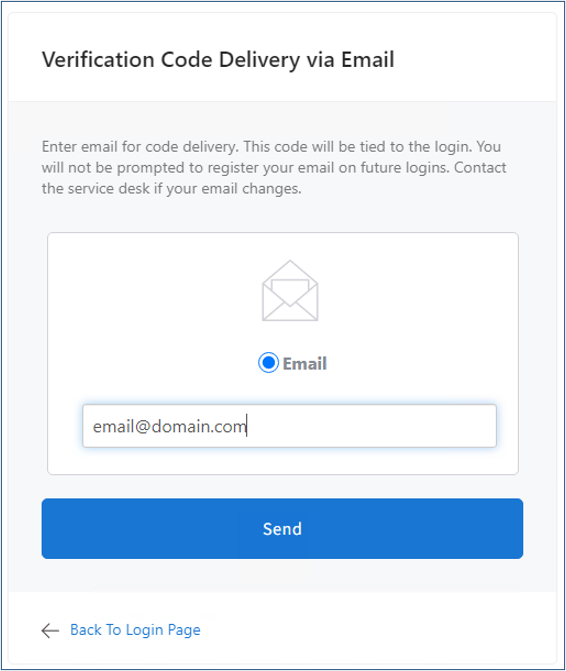
4. Select Email for Code Delivery Method
5. Enter the Email Address for Code Delivery, Click Send (Do Not Close Browser)
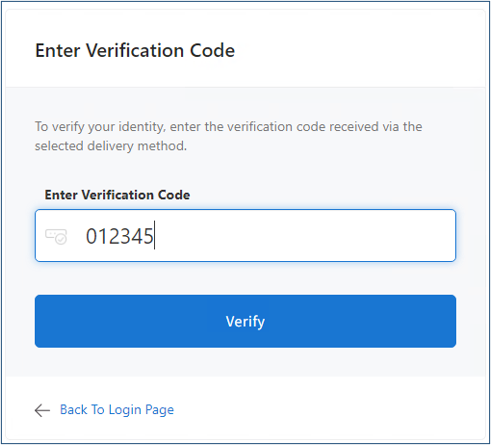
6. Open Email to Retrieve Code
7. In Same Browser, Scroll Down, Enter Code to in Email on MFA Screen, Click Verify
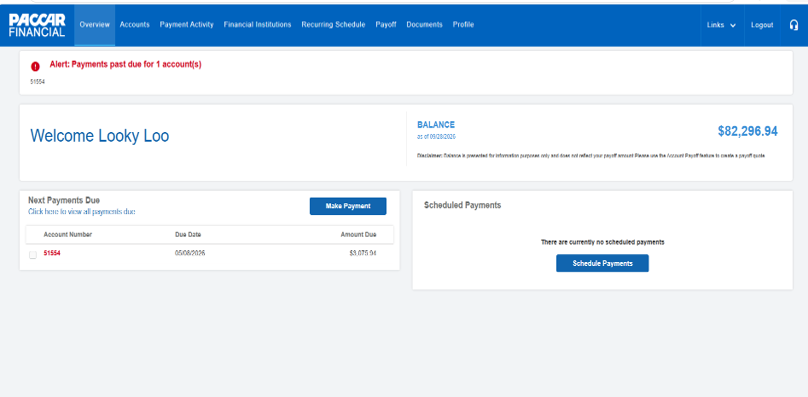
Success! Logged in to PACCARFINANCIAL.com
First-Time MFA Registration - Authenticator App
1.Navigate to www.PACCARFINANCIAL.com and Enter Credentials
2.Select Authenticator App for Code Delivery Method
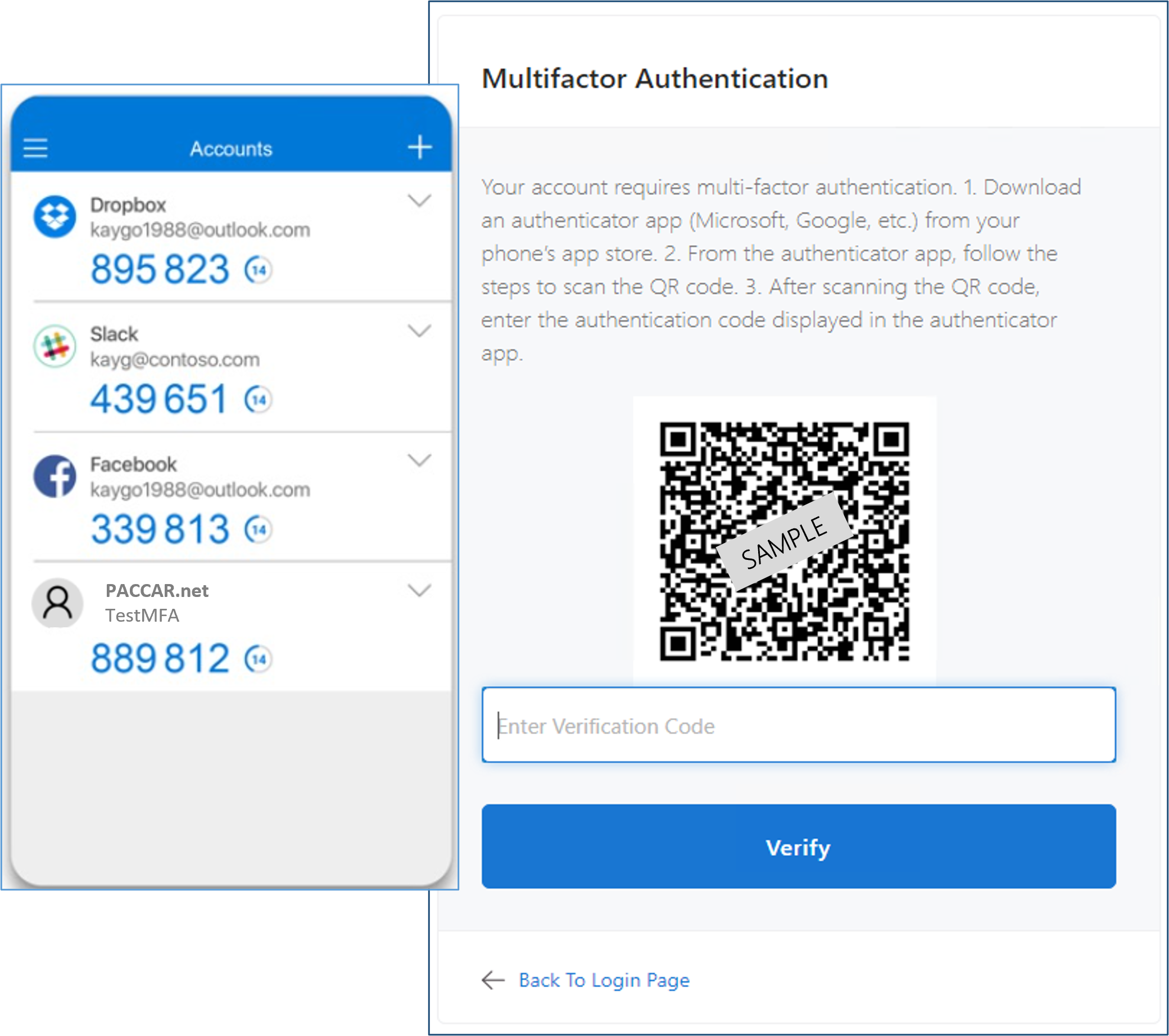
3.QR Code Presented
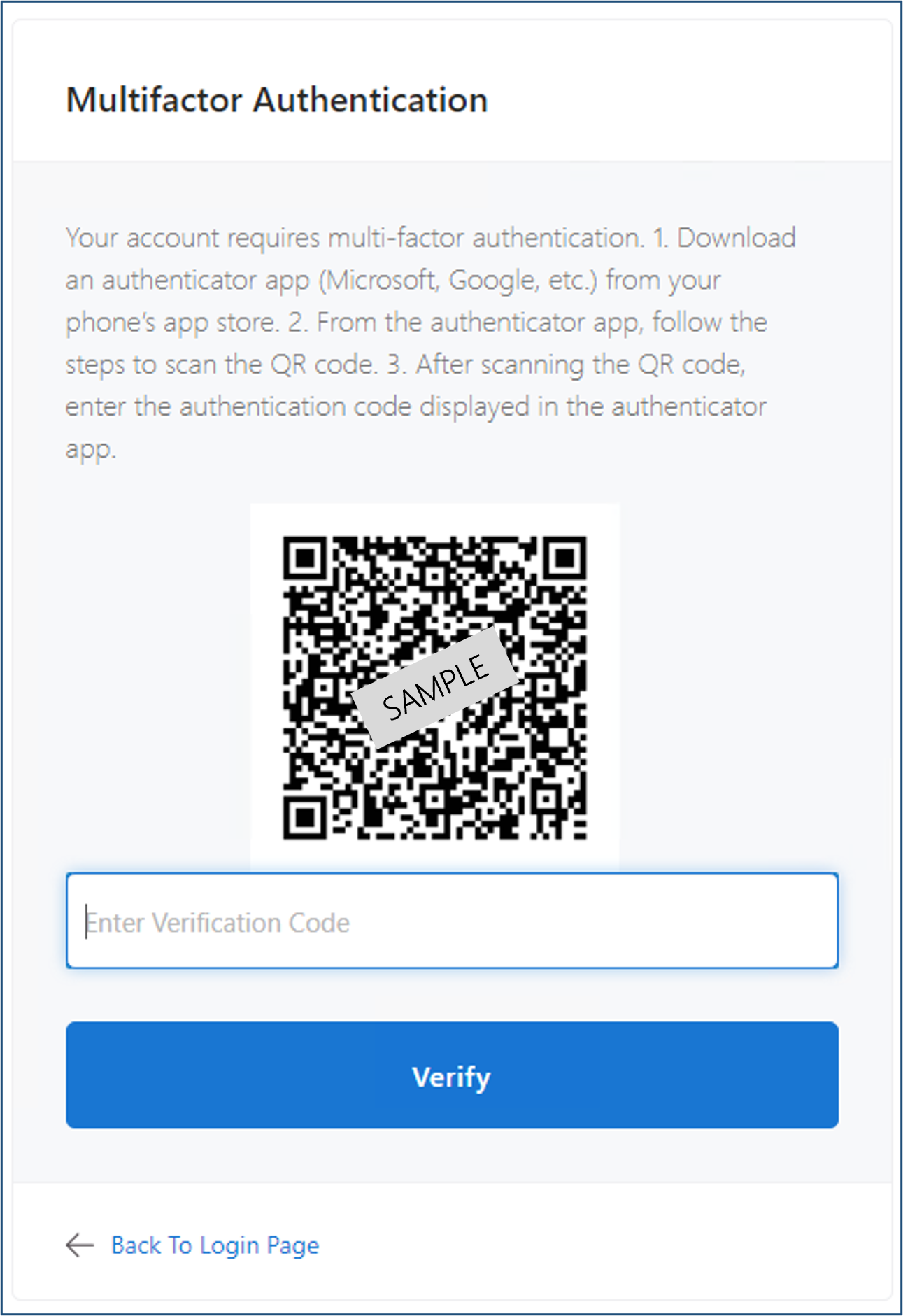
4.Install an Authenticator Application from Your Phone’s App Store
5.Open Authenticator Application
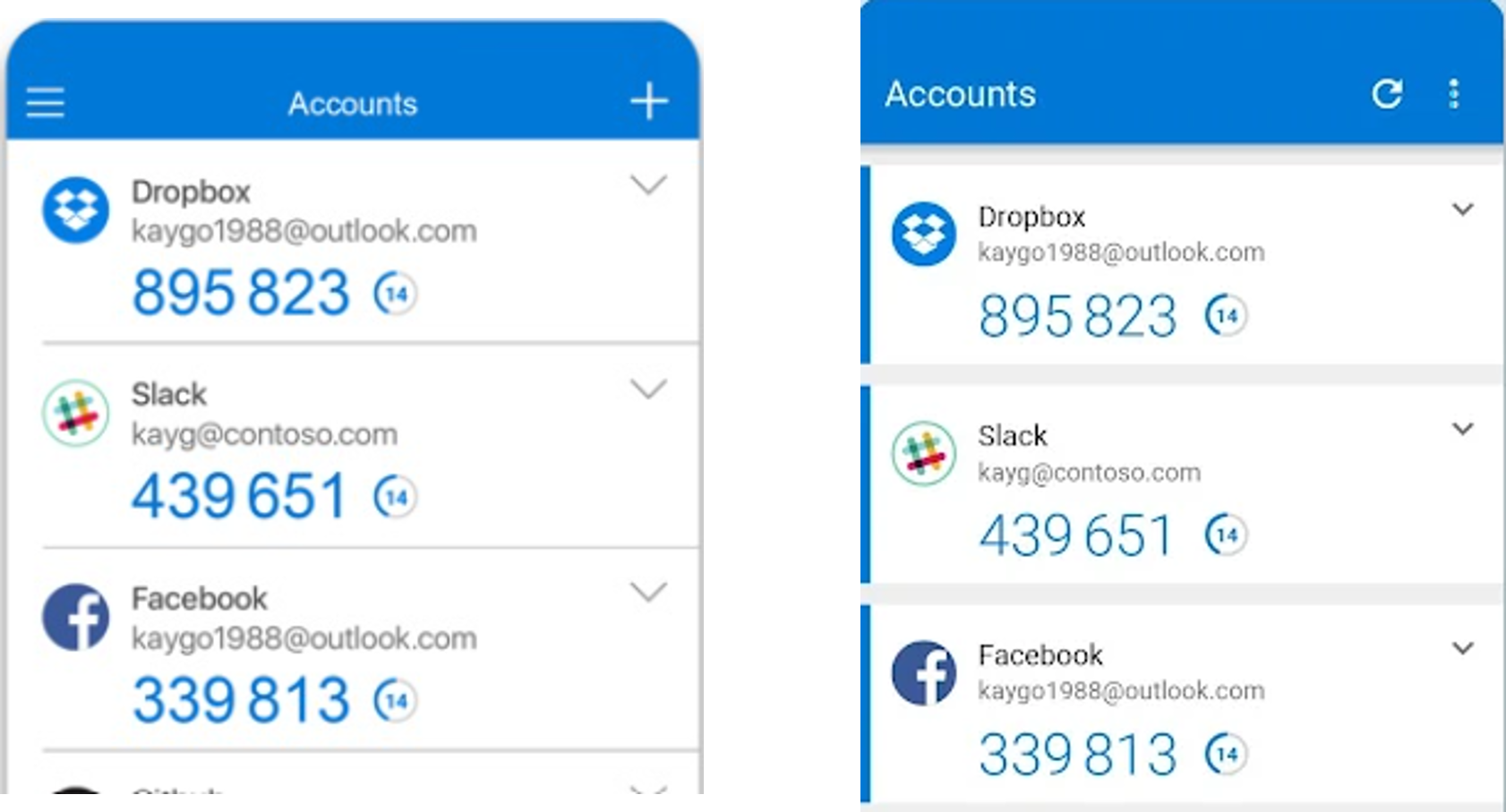
7.Scan QR Code with Authenticator Application
8. Application Presents Code
9. Enter Code to MFA Screen, Click Verify
Success! Logged in to www.PACCARFINANCIAL.com
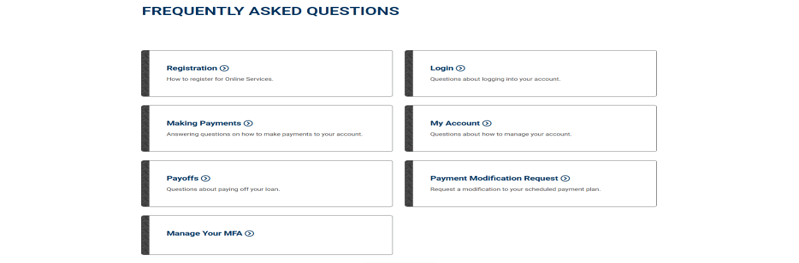
If you would like to:
- Register a Secondary MFA method
- Clear your MFA Email
- Clear your MFA Authenticator App
Refer to the Manage Your MFA documentation below.
Manage Your Multi-Factor Authentication
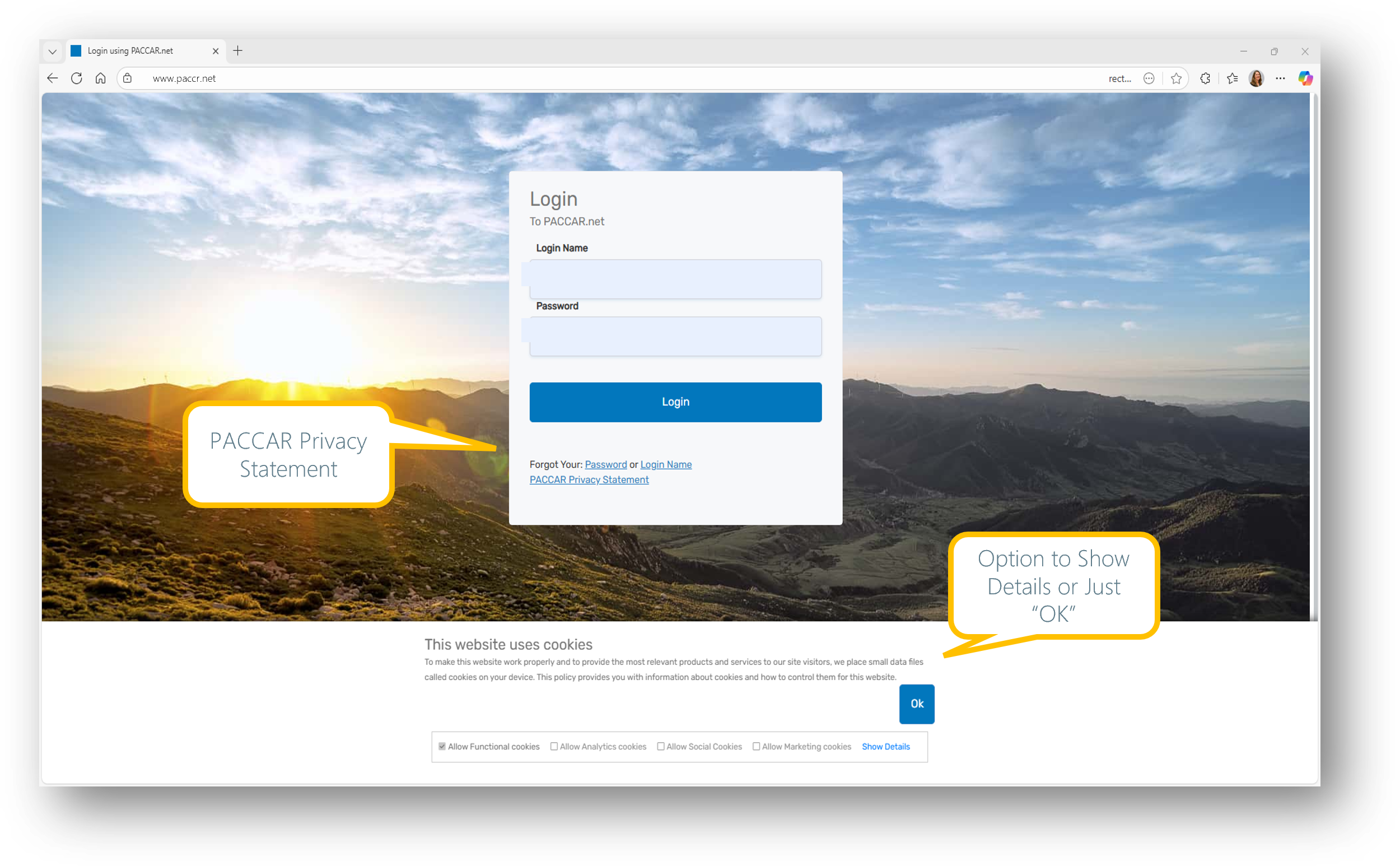
1.Navigate to www.PACCARFINANCIAL.com and Enter Credentials
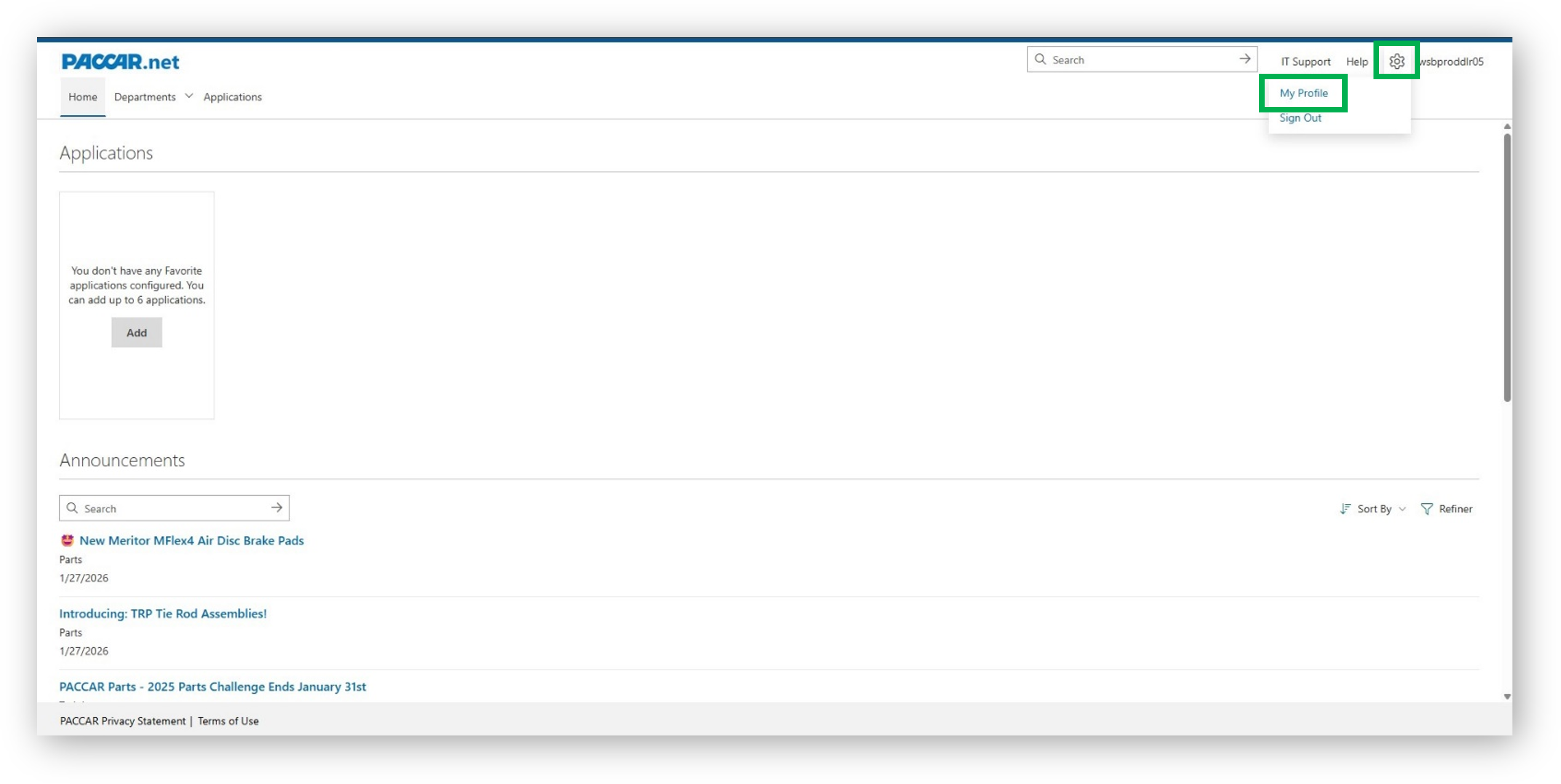
2.From PACCARFINANCIAL.com, Navigate to PASS then follow the steps below:
- Click on Gear Icon
- Click on My Profile
3. From PASS, Navigate to Manage Your MFA
- Click on Workflows
- Click on Manage Your MFA
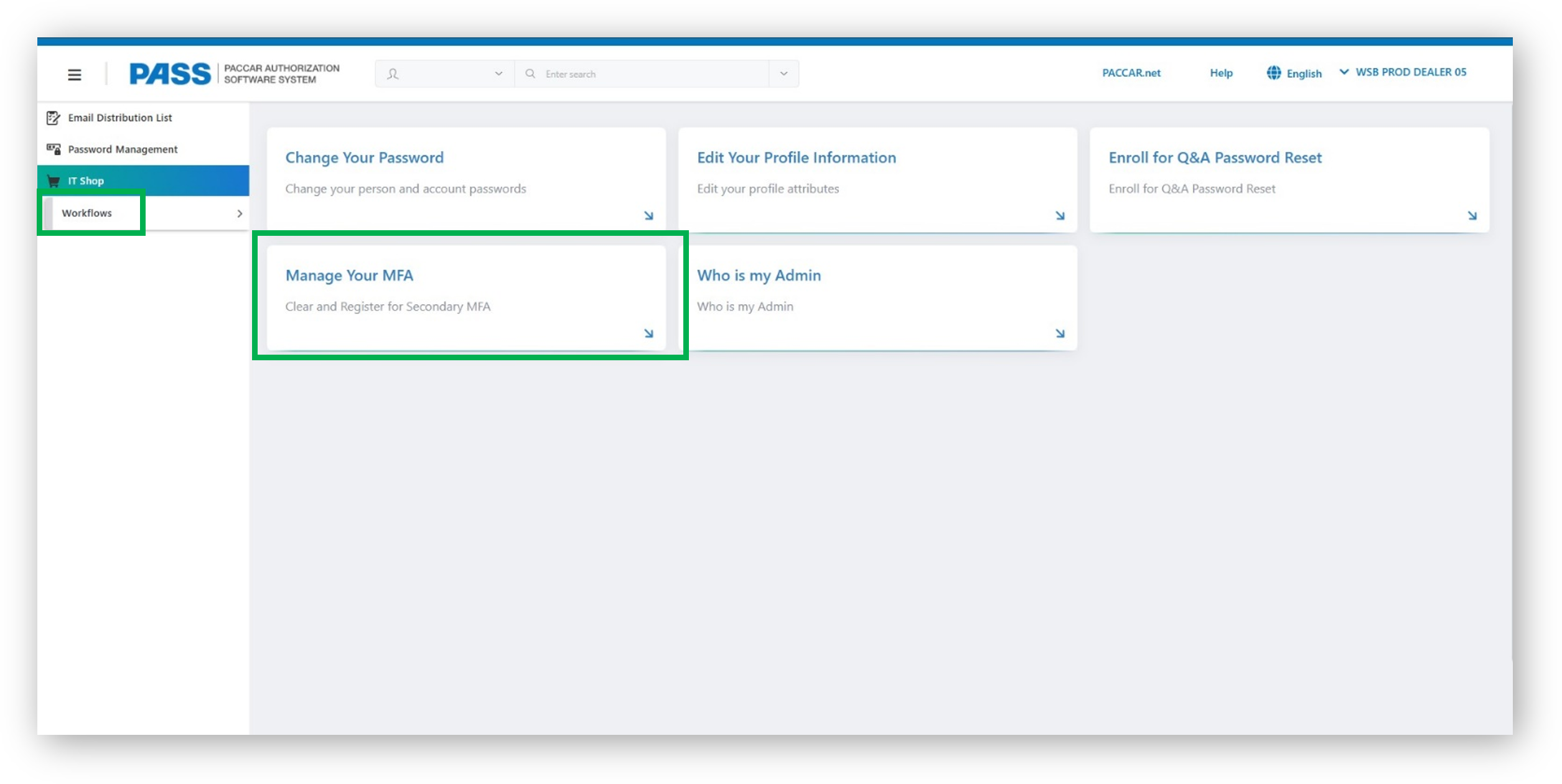
4. Manage Your Multi-Factor Authentication page opens
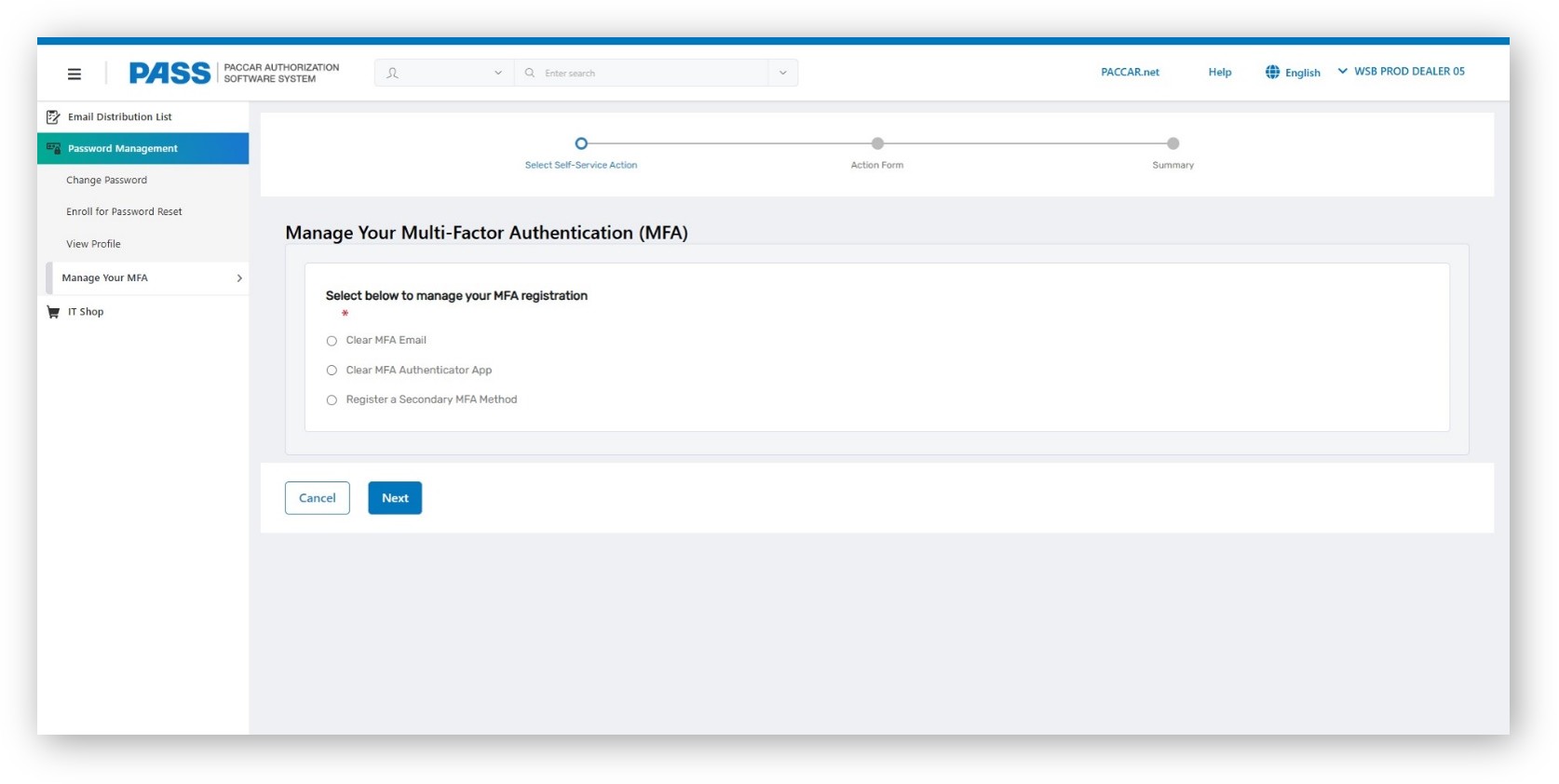
Manage Your MFA – Clear MFA Email
1. Click on Clear MFA Email
2. Click Next
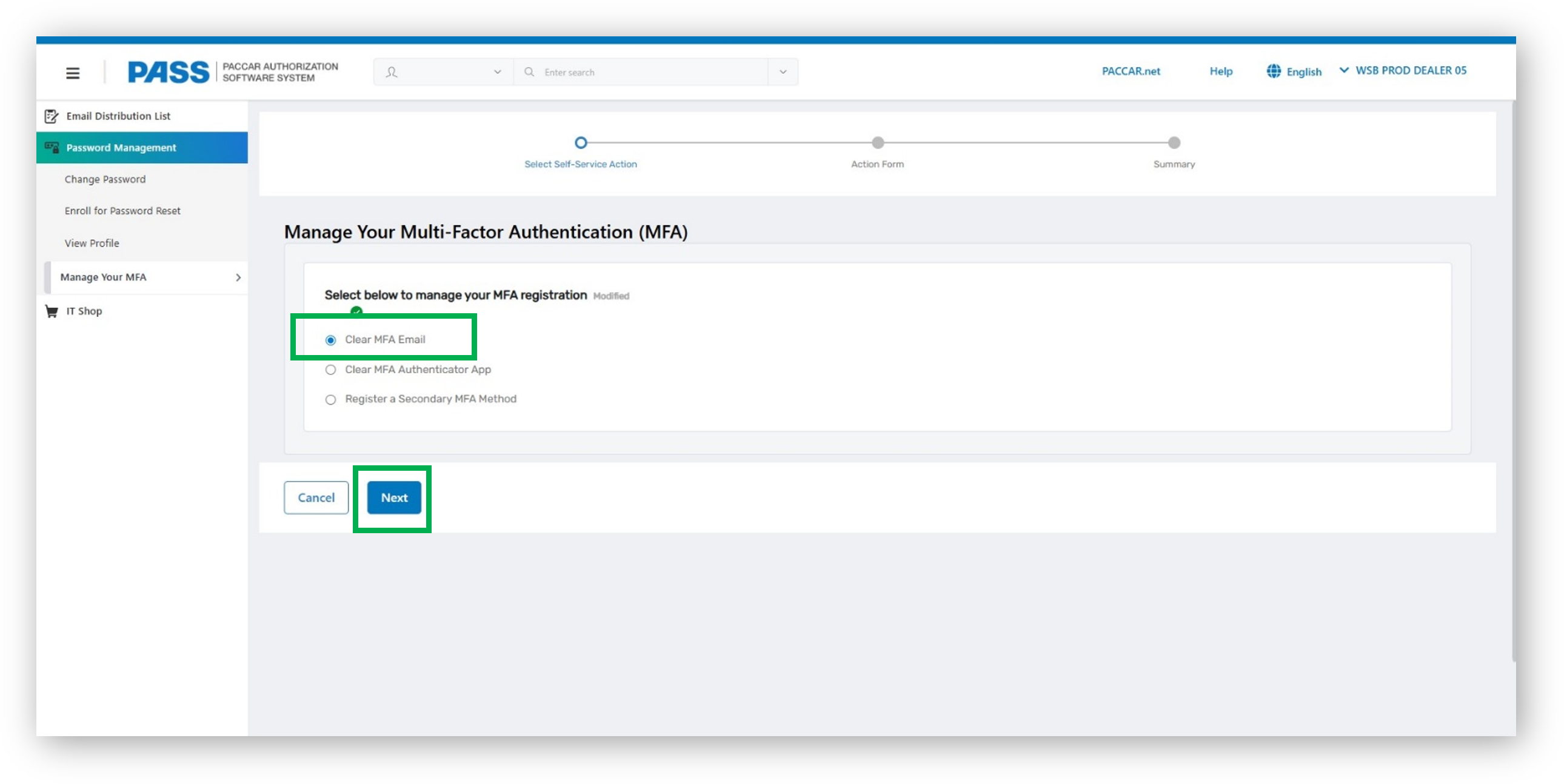
3. Click the checkbox to select the record
4. Click Submit
Note: If a secondary MFA method has not been set up, PASS will not allow the primary MFA method to be cleared
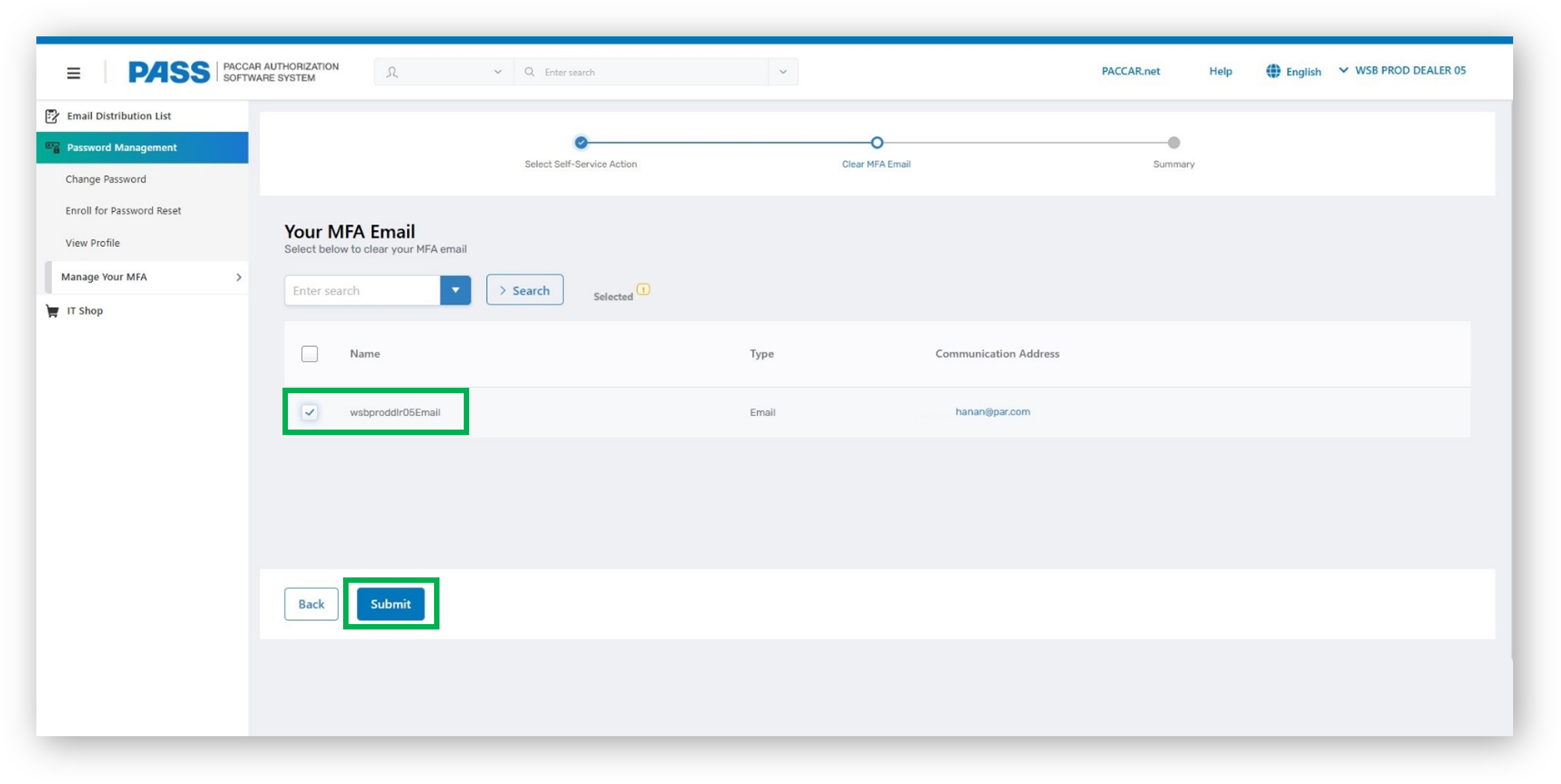
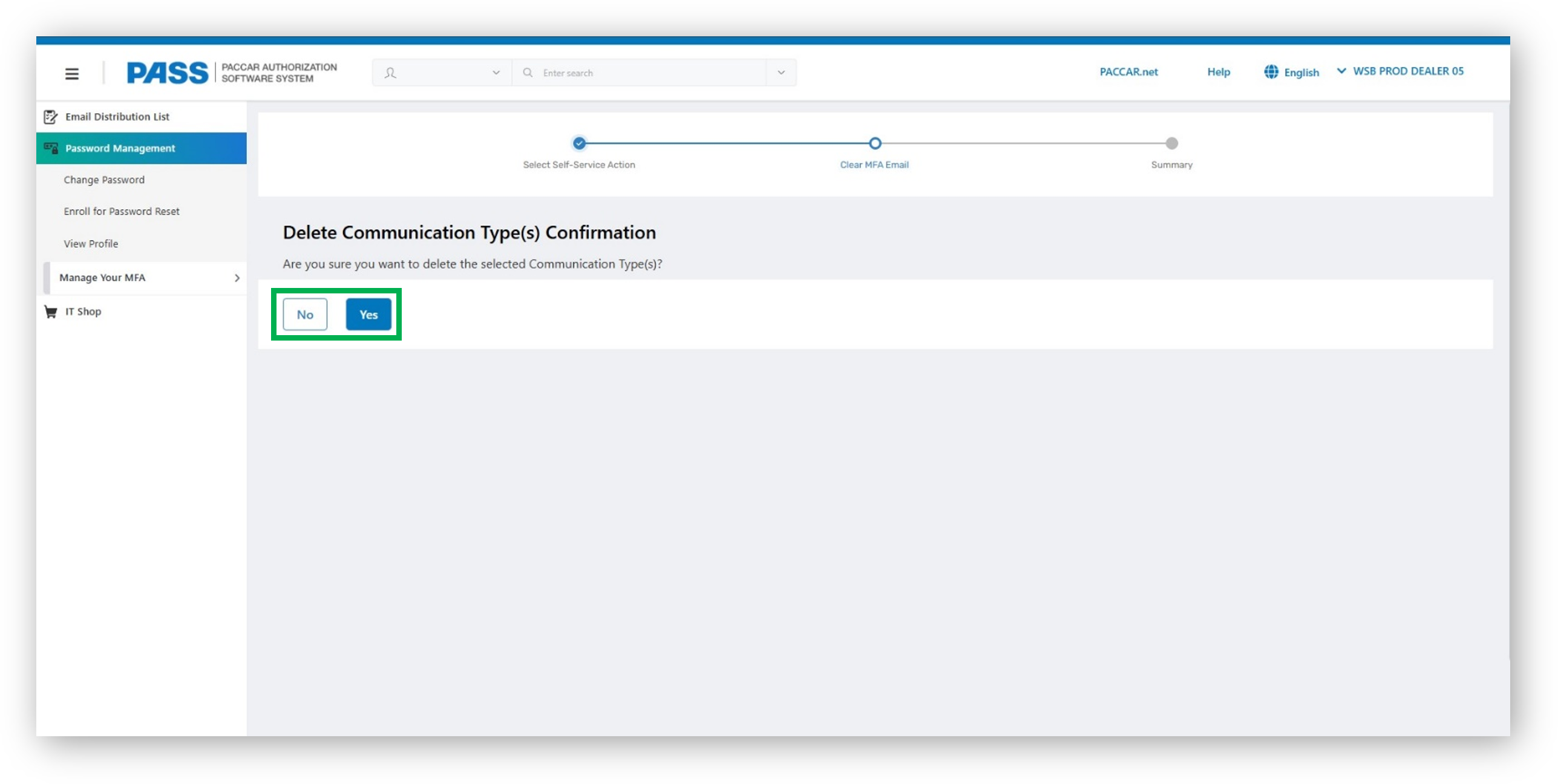
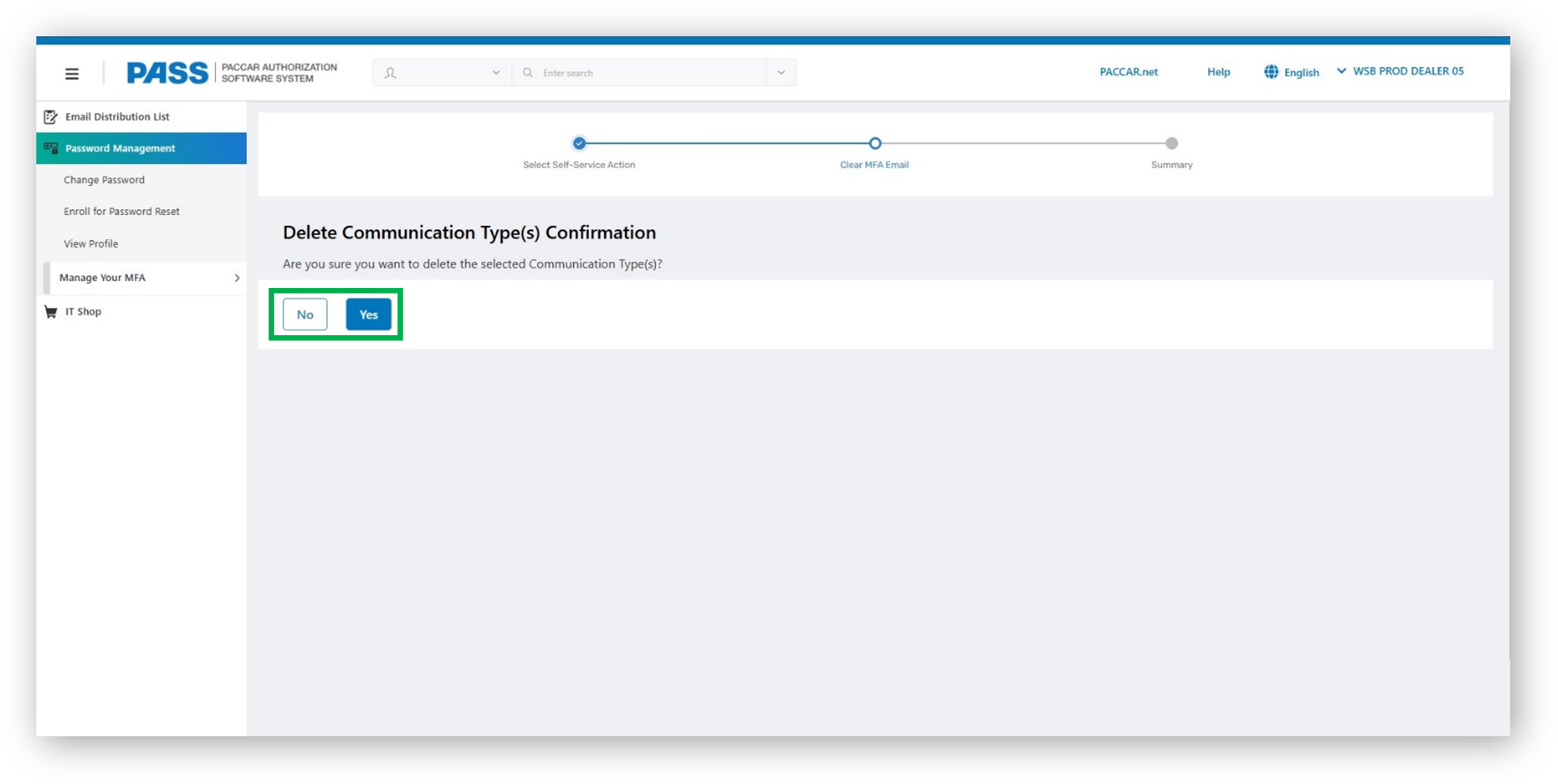
5. Confirmation: Click Yes to proceed or click No to cancel and exit
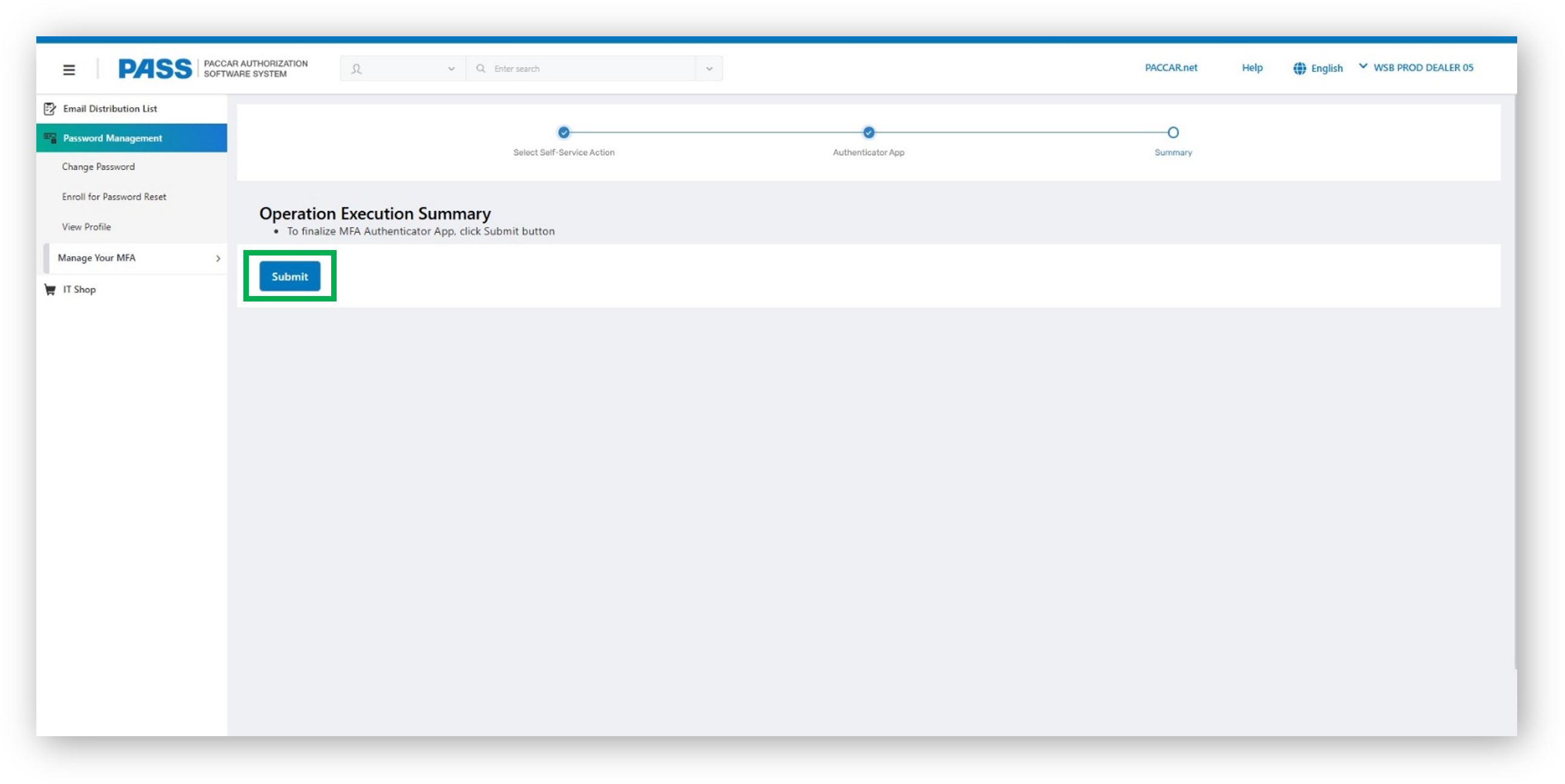
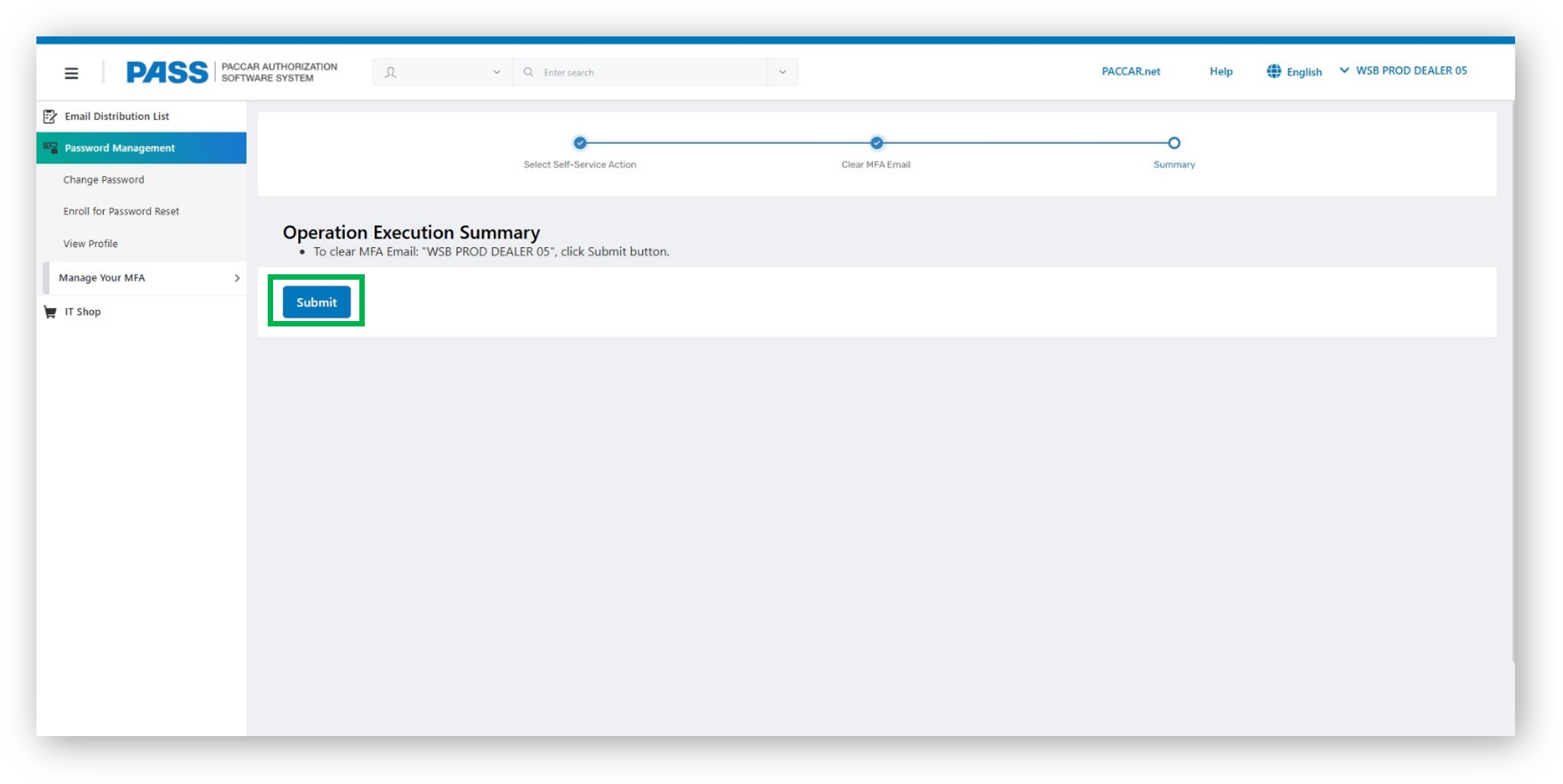
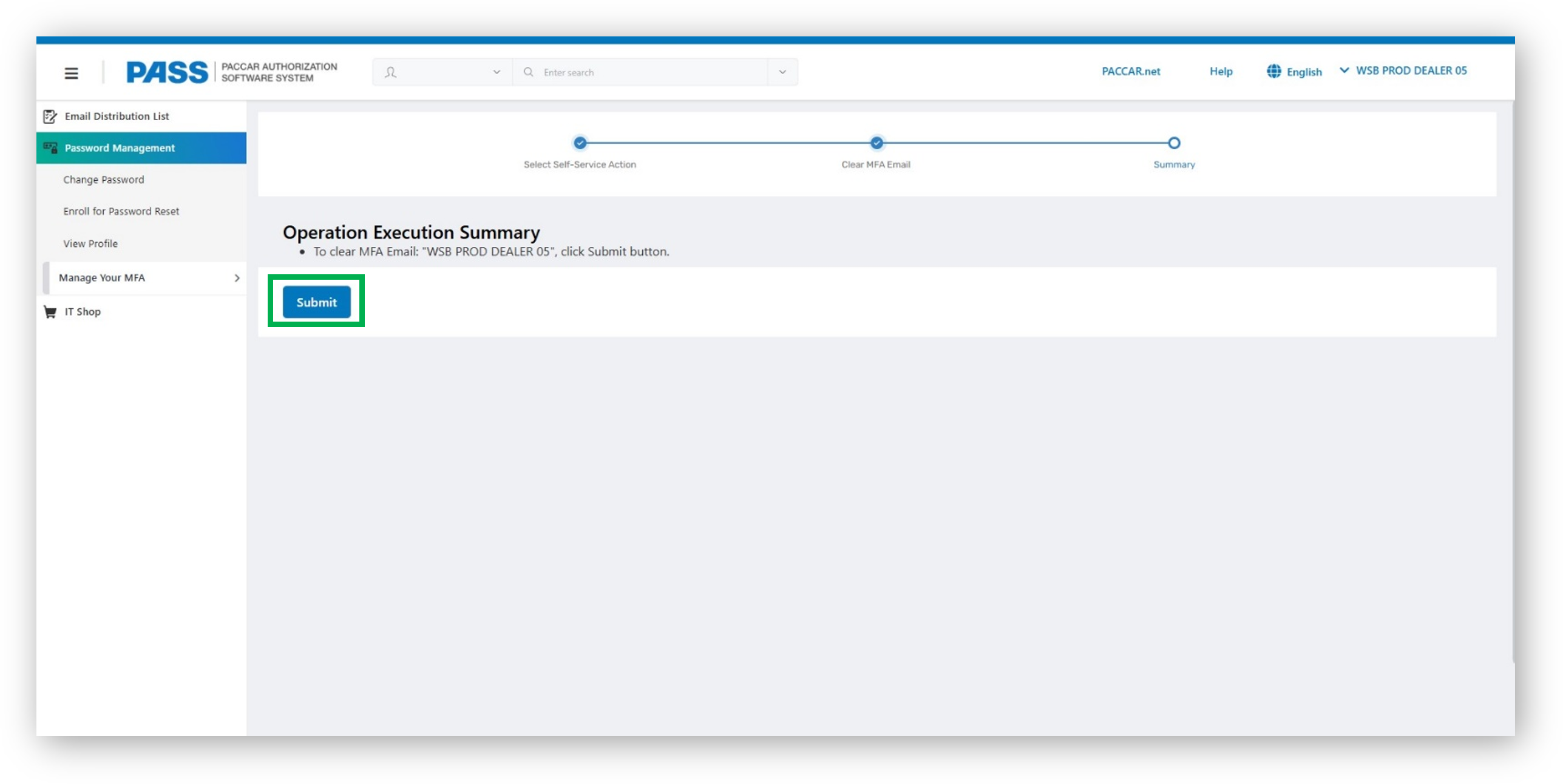
6.Click on Submit to finalize the process
Manage Your MFA – Clear MFA Authenticator App
After step 4 above follow these steps:
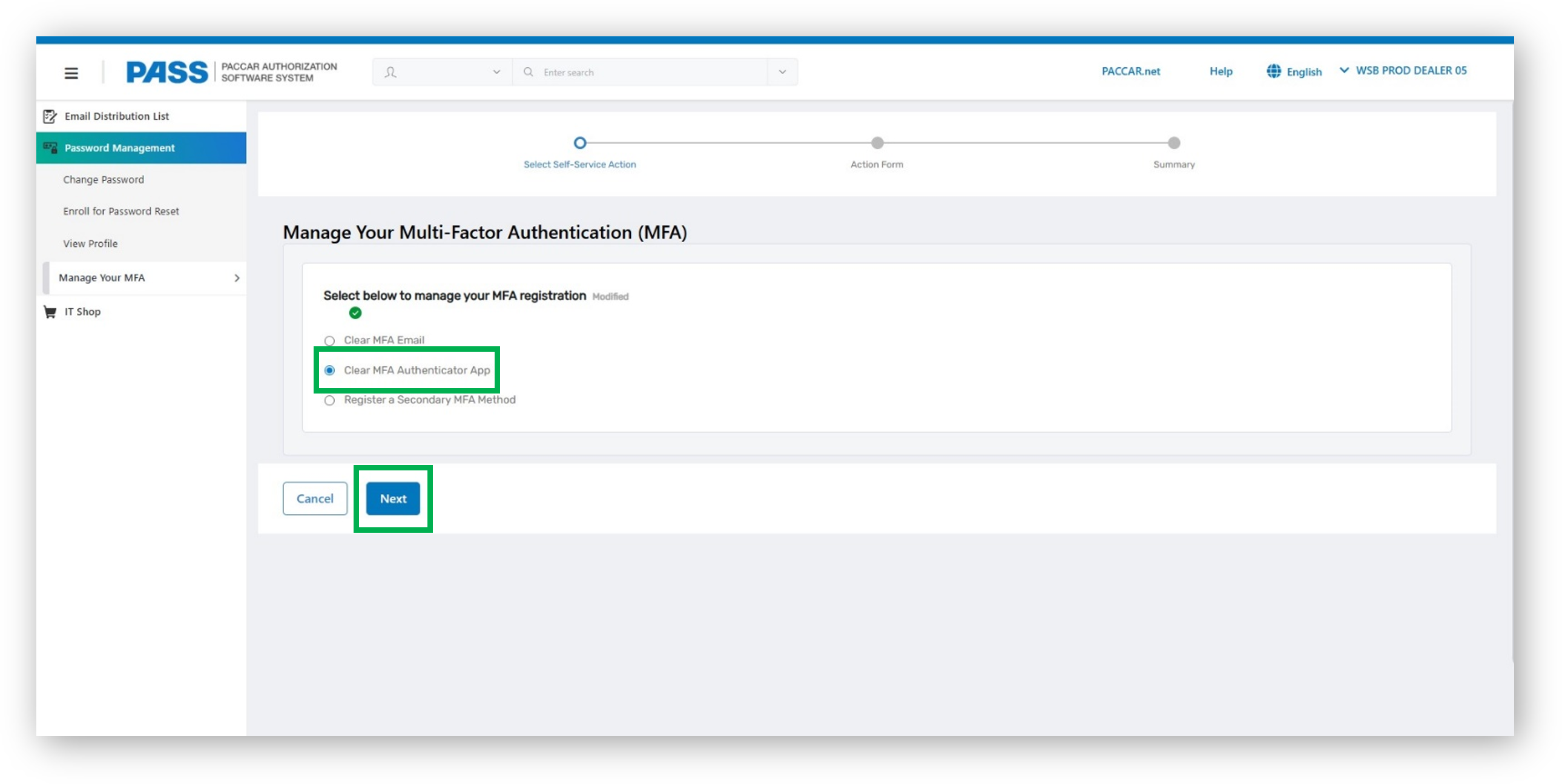
1.Click on Clear MFA Authenticator App
2.Click Next
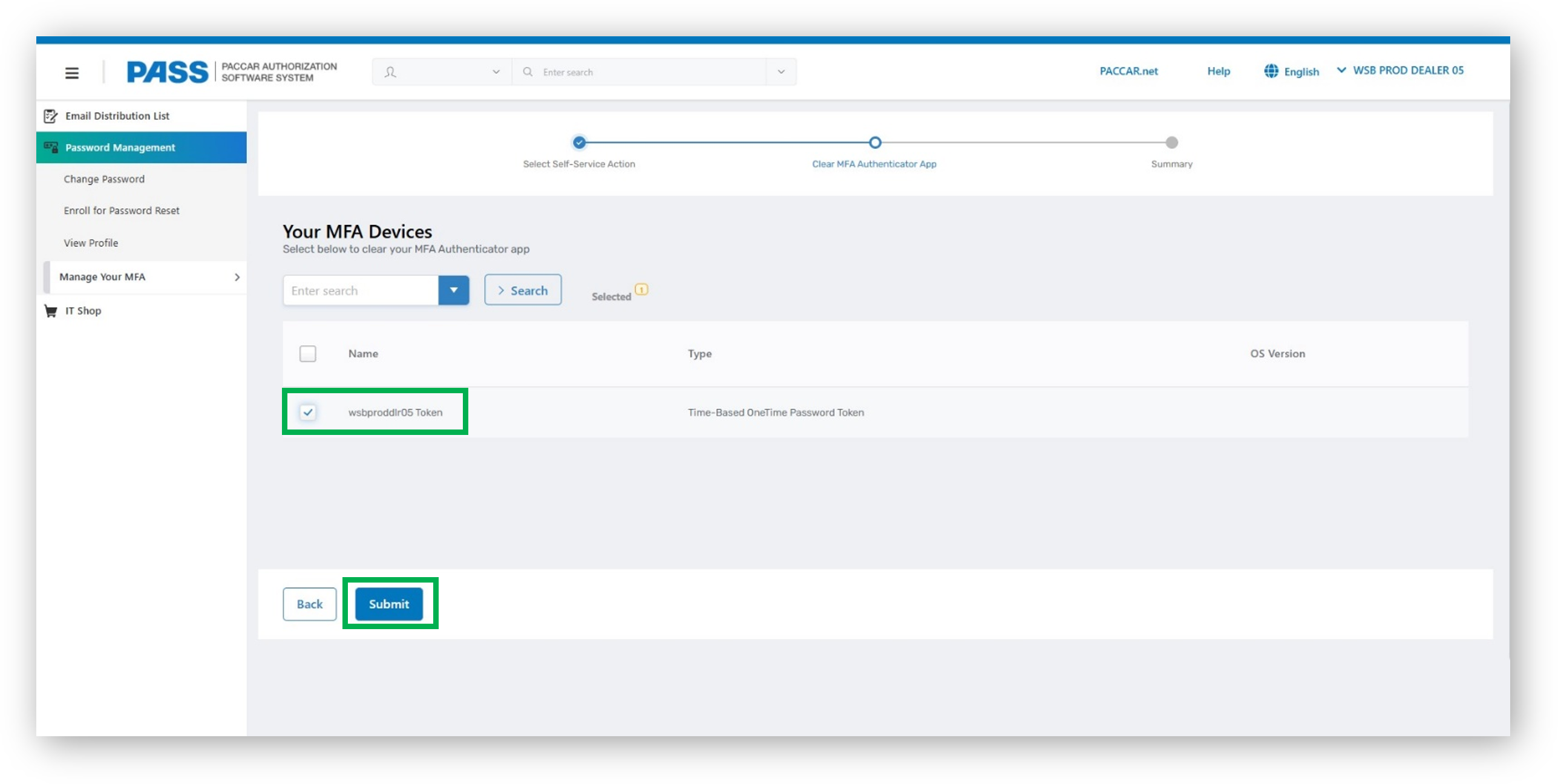
3. Click the checkbox to select the record
4. Click Submit
Note: If a secondary MFA method has not been set up, PASS will not allow the primary MFA method to be cleared
5. Confirmation: Click Yes to proceed or click No to cancel and exit
6. Click on Submit to finalize the process
Manage Your MFA – Register a Secondary MFA Method (Email)
From step 4 above follow these steps:
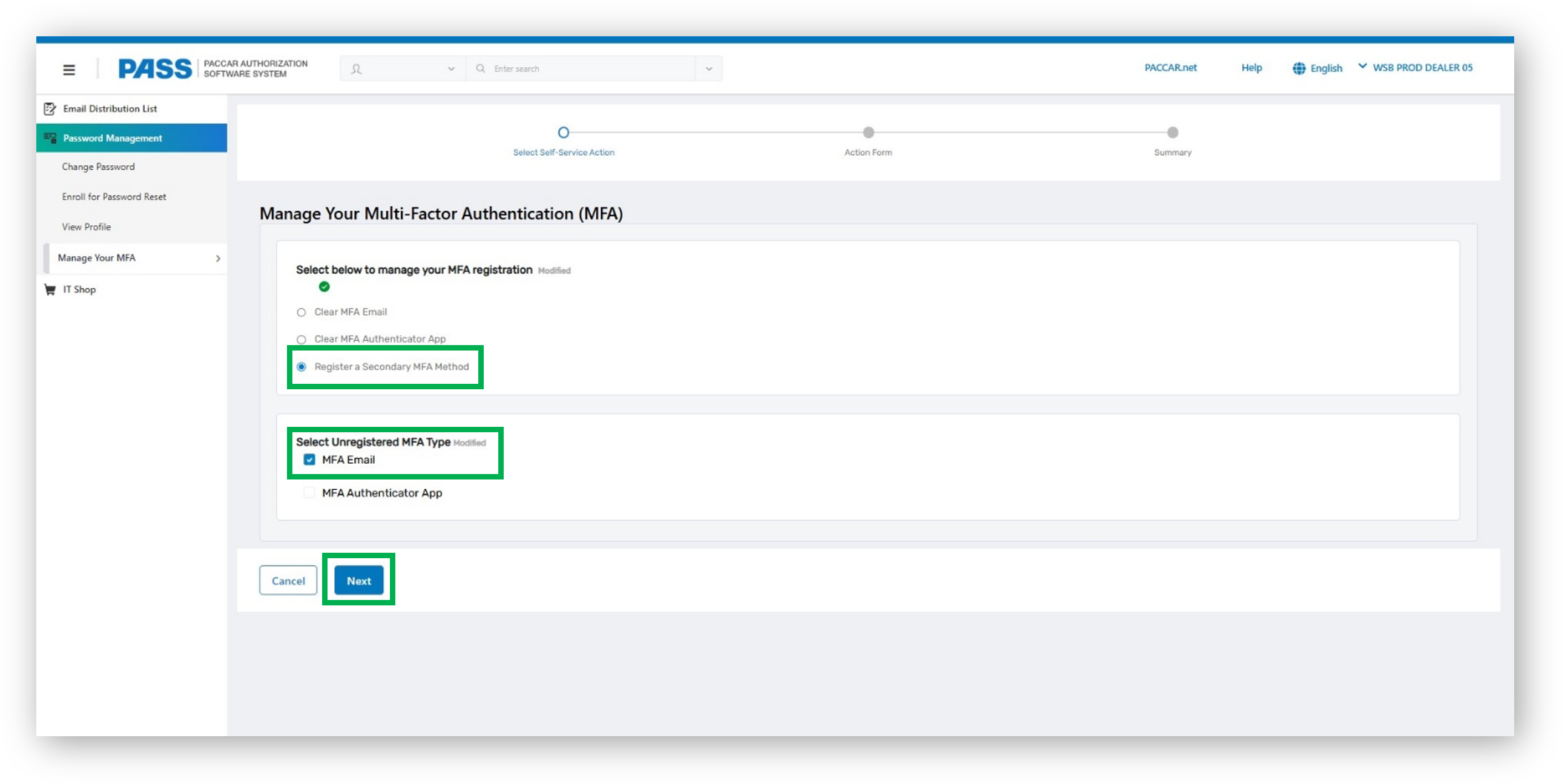
1. Click on Register a Secondary MFA Method
2. Select MFA Email
3. Click Next
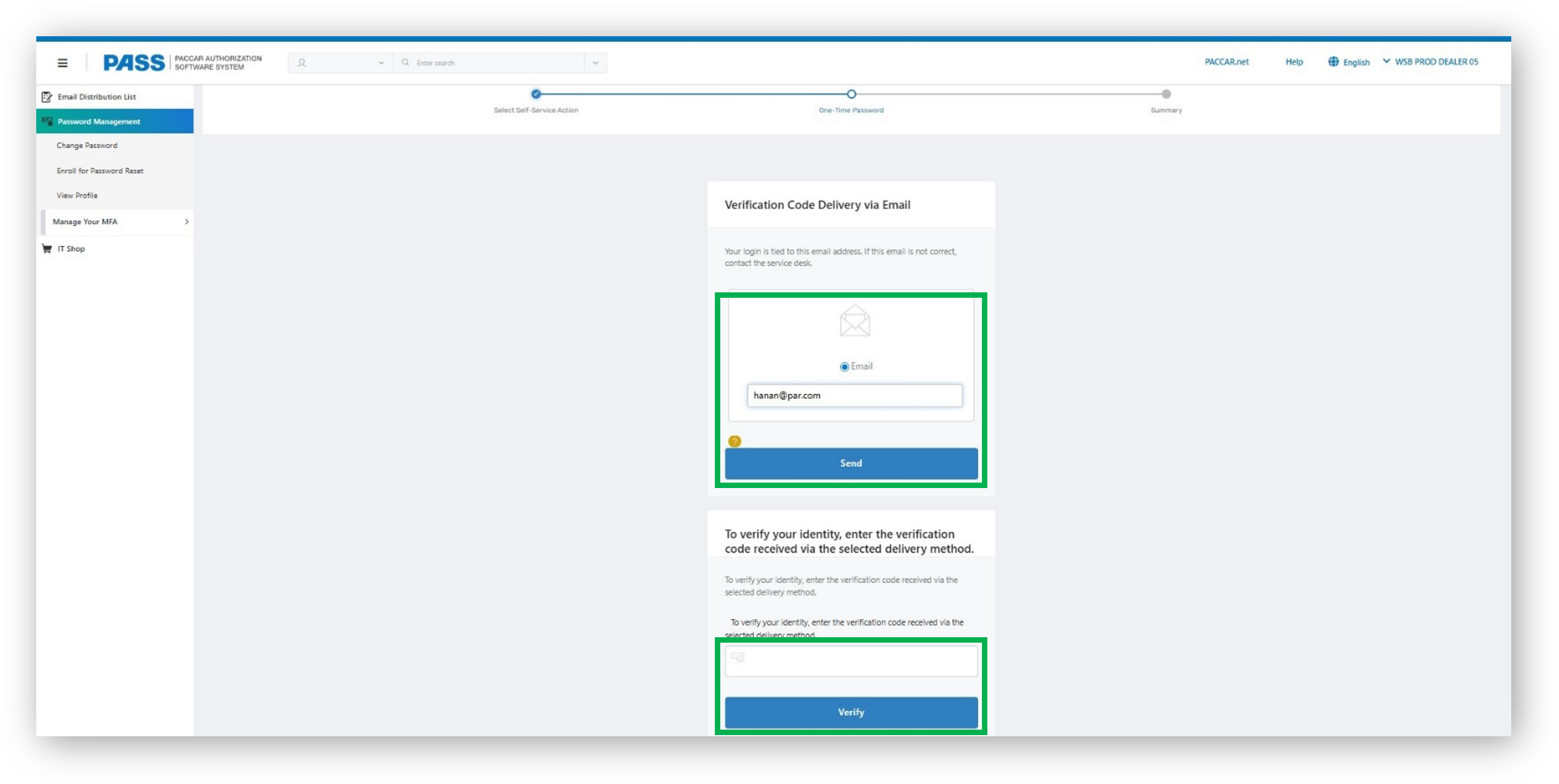
4. Click on Email, enter a valid email address, and click Send
5. After receiving the email containing the MFA code, enter the code into the verification field and click Verify
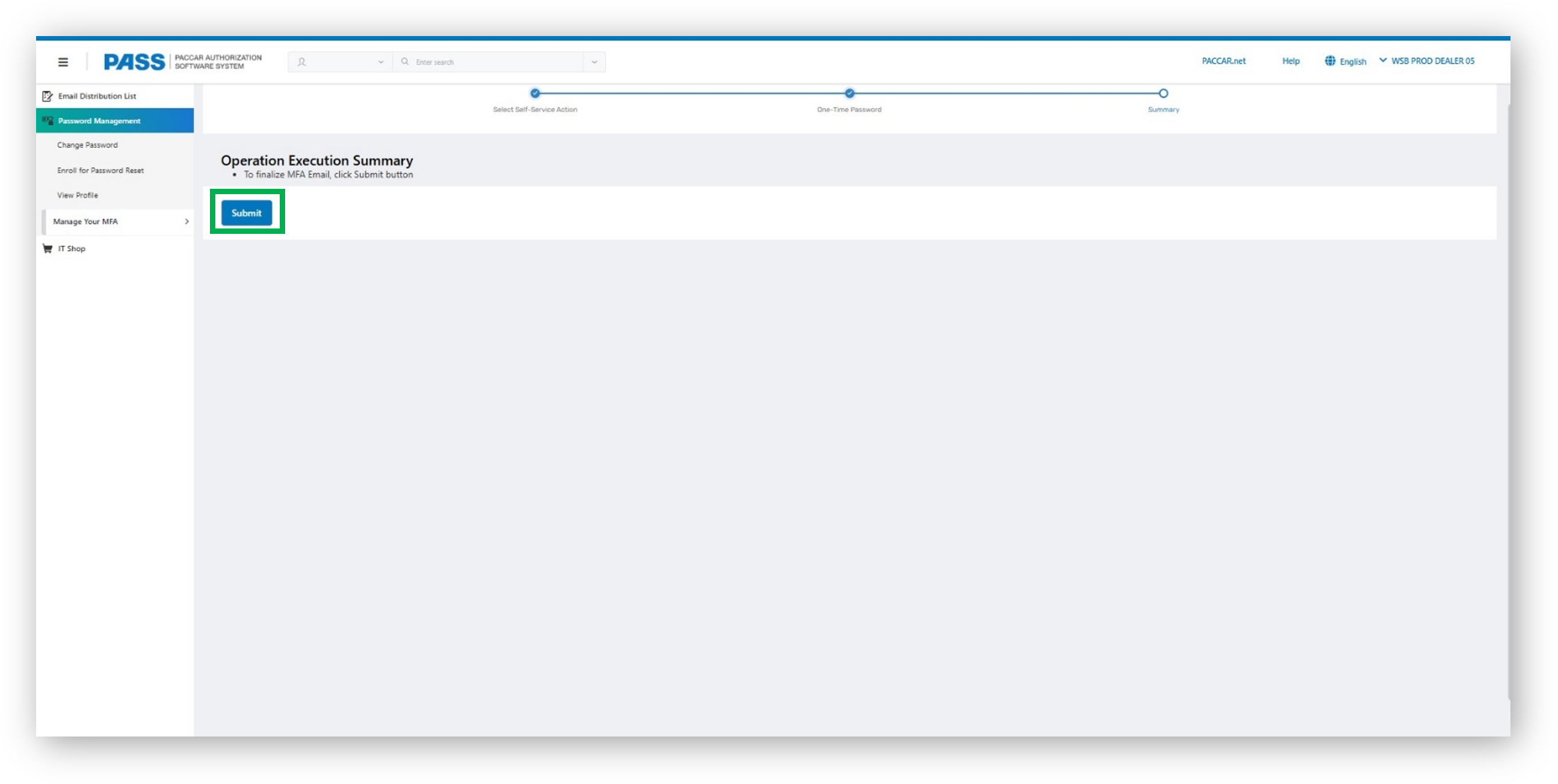
6. Click on Submit to finalize the process
Manage Your MFA – Register a Secondary MFA Method (MFA Authenticator App)
From step 4 above follow these steps:
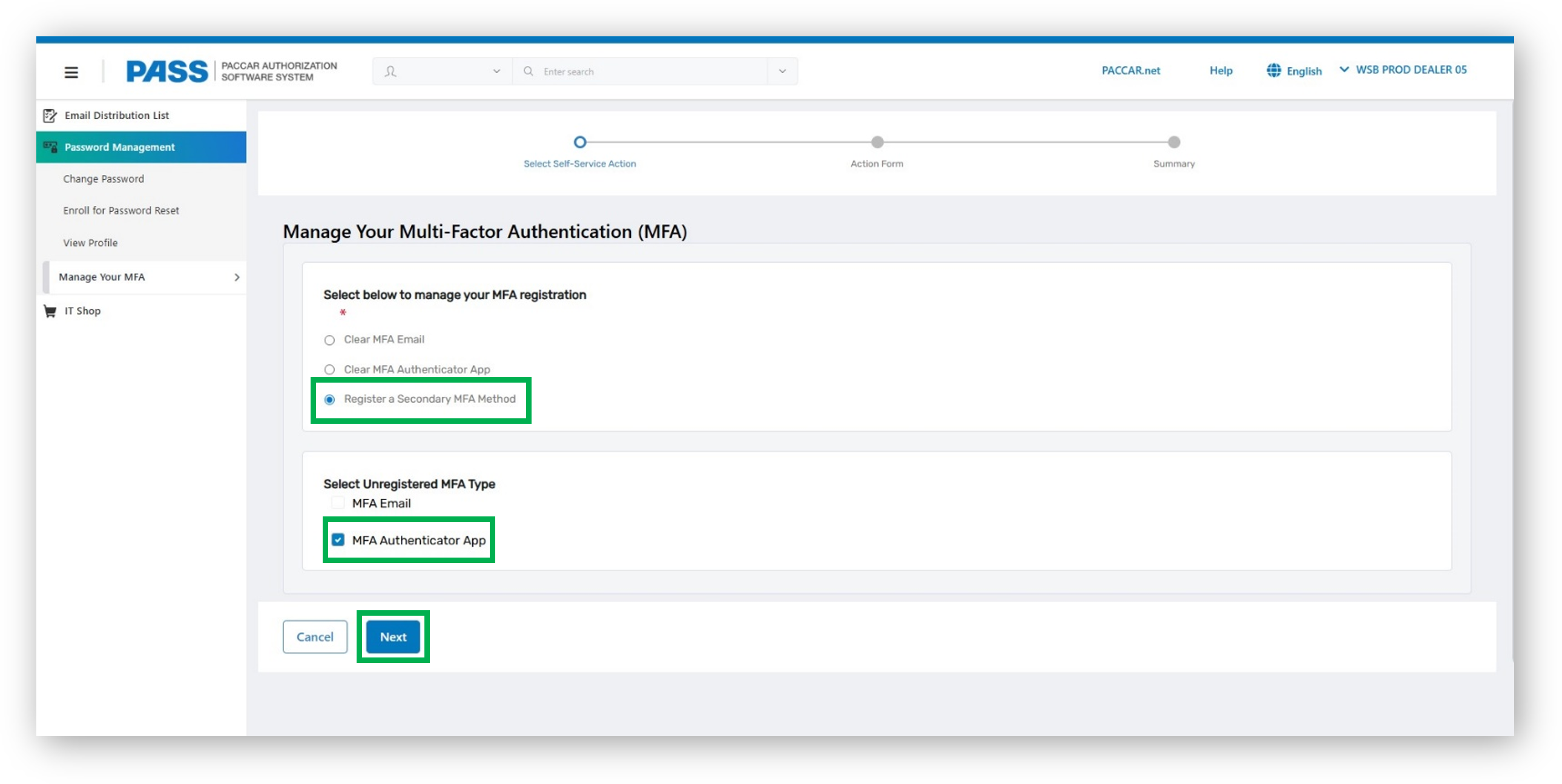
1. Click on Register a Secondary MFA Method
2. Select MFA Authenticator App
3. Click Next
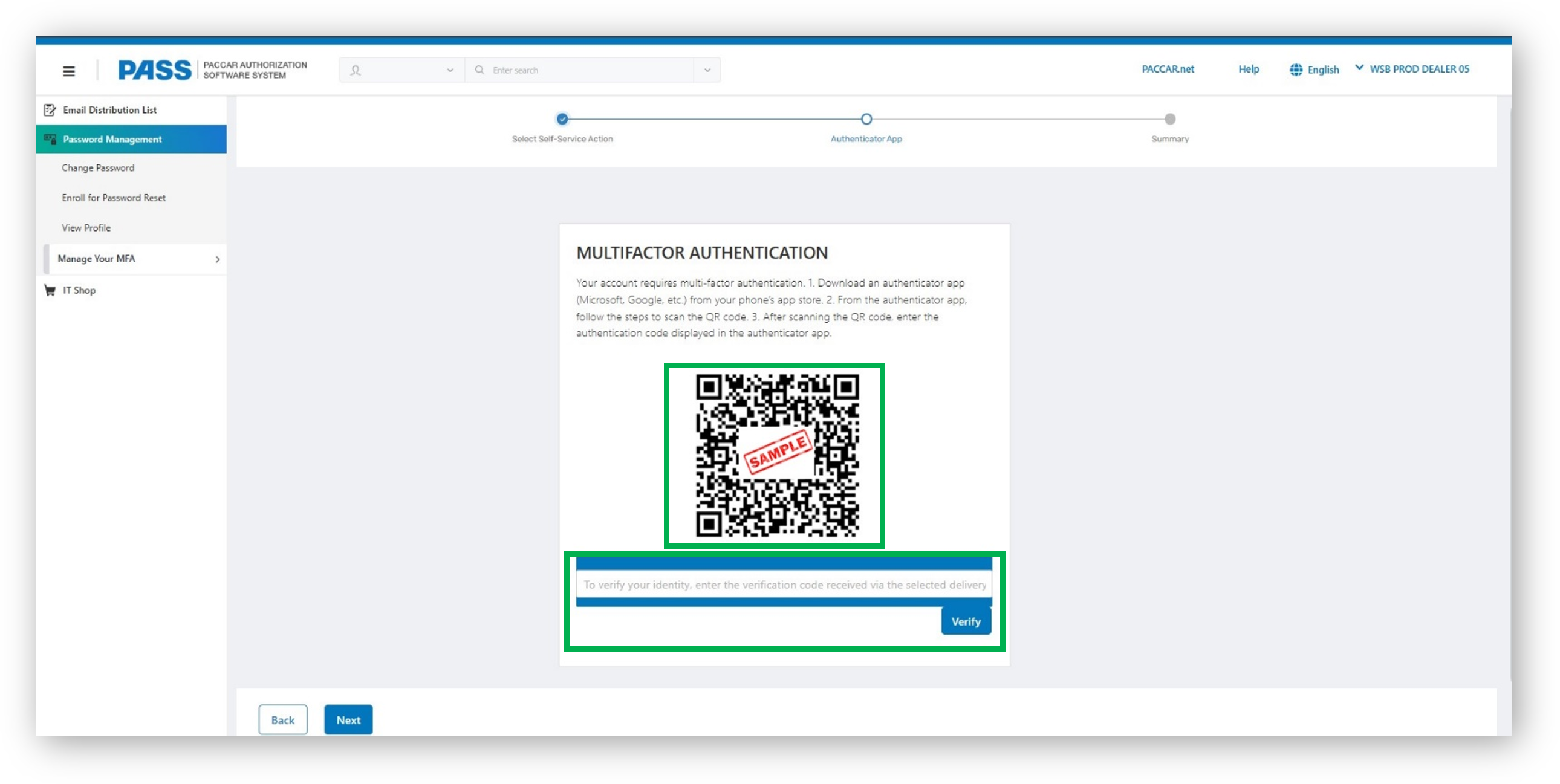
4. Open the authenticator app on a smartphone and scan the QR code to set up the MFA code
5. From the authenticator app, enter the MFA code in the verification field and click Verify
6. Click on Submit to finalize the process